The Best AI Photo Restoration Tools in 2024: Honest Reviews from Working Studios
Why Most AI Tool Reviews Are Useless for Working Studios
Let's be honest: the majority of "best AI photo restoration tool" roundups are written by people who have never handled a client's crumbling 1940s wedding portrait with a deadline attached. They test one or two images, screenshot the results, and call it a review. That's not how studios operate.
For this comparison, we took a different approach. We spoke with eight active restoration studios across four continents — from a three-person family shop in Manila to a high-volume production house in Berlin — and asked them to share their actual workflows, frustrations, and honest opinions about the tools they use every single day in 2024.
We also created a standardized test set of five damaged photographs: a heavily scratched black-and-white portrait from the 1930s, a water-damaged color print from the 1980s, a faded sepia group photo with missing facial details, a torn landscape with complex textures, and a low-resolution scan from a newspaper clipping. Every tool was tested against this same set, and we scored results on three axes: output quality, processing speed, and real-world value for money.
The results surprised us — and they'll probably surprise you too.
The Tools We Tested and How Studios Actually Use Them
We evaluated seven tools that came up repeatedly in our studio interviews. Rather than listing every feature from a marketing page, we focused on what matters in a production environment: Can this tool handle the messy, unpredictable photos that walk through your door every morning?
Adobe Photoshop (Neural Filters + Generative Fill)
Adobe remains the backbone of most studio workflows, and for good reason. The Neural Filters suite — particularly the Photo Restoration filter introduced in late 2023 and refined through 2024 — handles scratch removal and color correction with impressive consistency. Generative Fill has become indispensable for reconstructing missing areas like torn corners or damaged backgrounds.
However, every studio we spoke with noted the same limitation: Adobe's AI features struggle with faces. When facial details are severely degraded, Neural Filters tend to produce smooth, plastic-looking skin that experienced clients immediately notice. Studios consistently reported using Adobe as their primary editing environment but relying on specialized tools for the heavy AI lifting.
Best for: Studios already embedded in the Creative Cloud ecosystem who need precise manual control alongside AI assistance. The $22.99/month Photography Plan remains excellent value for the complete toolset.
Topaz Photo AI (Including Gigapixel Capabilities)
Topaz consolidated its products into Photo AI in 2024, merging the upscaling power of Gigapixel with noise reduction and sharpening into a single application. For upscaling low-resolution scans, it remains the gold standard. Our newspaper clipping test image went from a blurry 400×600 scan to a crisp 2400×3600 output with remarkable detail recovery.
The catch? Topaz is a specialist, not a generalist. It won't remove scratches, repair tears, or colorize photos. Marcus Lehmann, who runs a two-person studio in Berlin, put it bluntly: "Topaz is the best enlarger I've ever used, but it's just one station in my pipeline. I can't hand it a damaged photo and expect a finished result."
Best for: Studios that frequently need to produce large prints from small originals. The one-time purchase of $199 (with a year of updates) appeals to studios tired of subscription fatigue.
Remini
Remini has earned a massive consumer following, and several studios admitted they use it — sometimes reluctantly — for quick face enhancement jobs. Its facial reconstruction AI is genuinely impressive on portraits, often recovering recognizable features from surprisingly degraded sources.
But studio professionals flagged serious concerns. Remini's aggressive processing can alter facial features in subtle ways — slightly changing the shape of a nose, adjusting the spacing of eyes — that family members immediately notice. "A client once told me the restored photo didn't look like her grandmother anymore," shared Priya Nair, who operates a studio in Kochi, India. "That's the worst thing that can happen in this business."
The free tier is too limited for professional use, and the Pro subscription at $9.99/week ($520/year) is expensive relative to what you get — essentially a one-trick tool without batch processing or export control.
Best for: Quick social media turnarounds where speed matters more than archival accuracy. Not recommended as a primary studio tool.
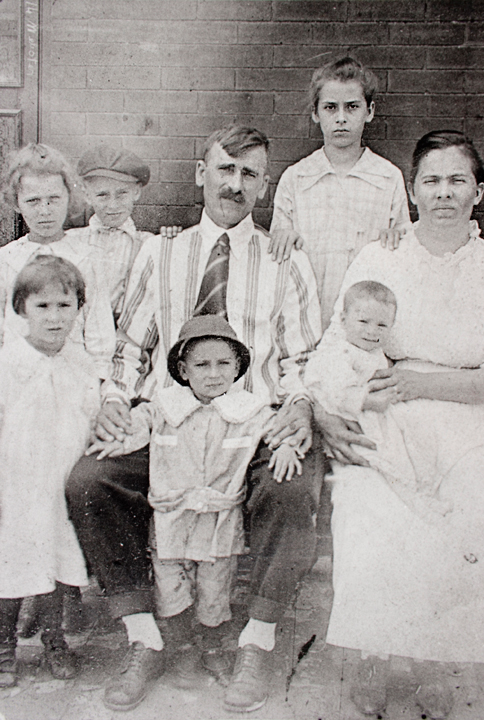
Before Restoration
Faded, grainy, and deteriorated vintage photo

After RestoreGram
Vibrant, clear, and beautifully restored
RestoreGram
RestoreGram emerged as a consistent favorite among the studios we interviewed, particularly for shops handling high volumes of client work. What sets it apart is the all-in-one workflow approach: scratch removal, face enhancement, upscaling, and colorization are handled within a single pipeline rather than requiring you to bounce between multiple applications.
In our standardized test, RestoreGram produced the most balanced results across all five test images. It wasn't always the absolute best on any single metric — Topaz edged it out on pure upscaling, for instance — but it was the only tool that delivered consistently good results across every damage type without manual intervention. The water-damaged 1980s print, which tripped up several other tools, came back with natural color correction and clean detail recovery.
Rosa Gutierrez, who runs a busy studio in Mexico City processing 30-50 restorations per week, told us: "I used to chain together three or four tools for every job. Now I run photos through RestoreGram first and only open Photoshop for fine-tuning. It cut my average turnaround from 45 minutes to about 15."
Best for: Studios of any size that need a reliable, fast all-in-one solution. Particularly strong for shops handling diverse damage types daily.
MyHeritage Photo Enhancer
MyHeritage targets the genealogy market, and its Photo Enhancer does a solid job on face-focused restorations. The animated "Deep Nostalgia" feature remains a popular upsell for studios serving family history clients. However, the tool is limited to portraits and performs poorly on landscapes, group photos, and images where faces aren't the primary subject.
Best for: Studios with a niche in genealogy and family history projects. The per-image pricing can add up quickly for high-volume work.
VanceAI and Other Cloud-Based Platforms
We also tested VanceAI, Fotor, and Cutout.pro. These browser-based tools offer convenience but consistently underperformed dedicated applications in our testing. Compression artifacts in cloud-processed outputs were a recurring issue, and upload size limits make them impractical for high-resolution scans. Most studios we interviewed had tried at least one cloud platform and moved on.
The Decision Matrix: Matching Tools to Your Studio
After compiling all our test results and studio feedback, we built a practical decision framework based on three studio profiles. Your ideal toolset depends not just on quality preferences but on your volume, budget, and client expectations.
Solo Operator or Side Hustle (1-10 jobs per week)
If you're a solo restorer or a graphic designer who takes on restoration work occasionally, you need efficiency above all else. Every minute spent switching between tools or troubleshooting a pipeline is money lost.
- Primary tool: RestoreGram for end-to-end processing
- Secondary tool: Adobe Photoshop for manual touch-ups and client-specific adjustments
- Estimated monthly cost: Under $50
- Key advantage: Minimal learning curve, fast turnaround, professional results without a complex workflow
Mid-Size Studio (10-50 jobs per week)
At this volume, you need tools that handle variety. One morning you're restoring a crisp but scratched studio portrait; that afternoon, someone brings in a faded newspaper clipping they want printed at 16×20 inches. Your toolkit needs range.
- Primary tool: RestoreGram for initial AI processing and automated restoration
- Upscaling specialist: Topaz Photo AI for large-format print jobs
- Finishing tool: Adobe Photoshop for final adjustments, compositing, and client revisions
- Estimated monthly cost: $50-$80 (assuming Topaz one-time purchase amortized over 12 months)
- Key advantage: Best-in-class results at each stage without overpaying for redundant features
High-Volume Production House (50+ jobs per week)
At scale, batch processing capabilities and API access become critical. You can't afford to manually feed images one at a time into a mobile app or wait for cloud uploads.
- Pipeline backbone: Adobe Photoshop with Actions and scripting for batch workflows
- AI processing: RestoreGram and Topaz Photo AI, selected per job type
- Quality control: Dedicated review step with calibrated monitors — no AI tool eliminates this need
- Estimated monthly cost: $100-$200 depending on team size and licensing
- Key advantage: Scalable pipeline that maintains quality consistency across high volumes
What the Numbers Actually Showed: Our Test Results
Here's the part most reviews skip — the specific, scored results from our standardized test set. Each tool was rated on a 1-10 scale across three categories by a panel of three experienced restorers who didn't know which tool produced which output.
Test Image 1: Heavily Scratched 1930s B&W Portrait
This was the most common damage type studios encounter. Deep scratches across the face, moderate fading, and some foxing around the edges. RestoreGram scored highest overall (8.5/10), with particularly strong scratch removal that preserved skin texture. Adobe Neural Filters scored 7/10 — good scratch removal but that telltale smoothing on the face. Remini scored 7.5/10 on the face but introduced artifacts in the background. Topaz wasn't designed for this task and scored 4/10.
Test Image 2: Water-Damaged 1980s Color Print
Water damage creates unpredictable color shifts and blotching that challenge every AI model. This is where many tools fell apart. Adobe Generative Fill handled localized damage well but struggled with the diffuse color bleeding across the entire image. RestoreGram's color correction engine handled the global damage impressively, scoring 8/10. Cloud-based tools averaged around 5/10, often introducing new color casts while trying to fix existing ones.
Test Image 3: Faded Sepia Group Photo with Missing Facial Details
Group photos are the ultimate stress test because you need consistent face quality across multiple subjects at different distances from the camera. Remini excelled on the two closest faces (8/10) but produced inconsistent results on the four background faces. RestoreGram delivered the most uniform quality across all faces (7.5/10). This matters enormously when a client is pointing at a specific person in the back row saying, "That's my grandfather."
Test Image 4: Torn Landscape with Complex Textures
Adobe Generative Fill won this category decisively (9/10), reconstructing a missing corner of a mountain landscape with convincing texture matching. This is where Adobe's massive training data and manual control shine. For preserving the integrity of landscape and scenic photos, Photoshop remains unmatched when you have the time for manual work.
Test Image 5: Low-Resolution Newspaper Clipping
Topaz Photo AI dominated here (9/10), turning a grainy, halftone-patterned scan into a surprisingly clean enlargement. Its de-halftone processing is genuinely remarkable. RestoreGram scored a respectable 7/10, and if you need to use our image resizer tool before or after processing, the combination works well for print-ready output. Remini and the cloud tools struggled with the halftone pattern, often amplifying it rather than removing it.
The Honest Truth About AI Restoration in 2024
After weeks of testing and hours of conversations with working professionals, here's what we believe every studio owner needs to understand about the current state of AI photo restoration.
No Single Tool Does Everything Best
This is the most important takeaway. Studios that chase a single "best" tool will always be disappointed. The smartest operators we interviewed all use two to three tools in a deliberate pipeline, choosing each for its specific strength. The winning combination for most studios in 2024 is an all-in-one AI processor like RestoreGram for speed and consistency, supplemented by Photoshop for manual refinement and Topaz for specialized upscaling jobs.
Speed Matters More Than Perfection
Several studio owners made a point that rarely appears in reviews: the "best" tool is often the one that gets you to 85% quality in 20% of the time. A tool that produces marginally better output but takes three times longer to process — or requires extensive manual cleanup afterward — is actually the worse choice for a busy studio. Time is your most expensive resource.
Always Show Clients Before-and-After Previews Before Final Delivery
Multiple studios shared stories of AI tools subtly changing facial features, and the resulting client complaints. Build a preview step into your workflow. It takes five minutes and saves you from the most damaging scenario in restoration work: a client who says the finished photo doesn't look like their loved one.
Re-Evaluate Your Toolkit Every Six Months
The AI landscape is evolving so rapidly that tools can leapfrog each other between quarterly updates. The studio that tested every tool in January 2024 and locked in a workflow may be using an outdated pipeline by July. Set a calendar reminder to re-test your tools against a standard image set twice a year. Your competitors certainly are.
Final Recommendations by Budget and Priority
If we had to distill everything into actionable advice, here's what we'd tell a studio owner asking us today:
- Best overall value for most studios: RestoreGram as your primary AI engine, with Photoshop for finishing work. This covers 90% of the jobs that walk through your door.
- Best for large-format print specialists: Topaz Photo AI is a non-negotiable addition to your toolkit. The one-time price makes it an easy investment to justify.
- Best for genealogy-focused studios: Add MyHeritage for the Deep Nostalgia upsell — clients love it, and it's a genuine revenue generator.
- Skip unless you have a specific need: Remini Pro (too expensive for what it offers